> ## Documentation Index
> Fetch the complete documentation index at: https://docs.speckle.systems/llms.txt
> Use this file to discover all available pages before exploring further.
# How to use Speckle for Plant 3D
> Step-by-step guide for publishing Plant 3D models to Speckle
export const app_3 = "Plant 3D"
export const app_2 = "Plant 3D"
export const app_1 = "Plant 3D"
export const app_0 = "Plant 3D"
export const versions_0 = "2026 & 2027"
export const os_0 = "Windows"
Speckle currently supports {app_0} versions: **{versions_0}**. The {app_0} connector works on **{os_0}**
only.
## Setup
Install your [{app_1} connector](/connectors/installation)
1. In Plant 3D, select the **Speckle** tab in the ribbon.
2. Select **Speckle** to open the Plant 3D connector.
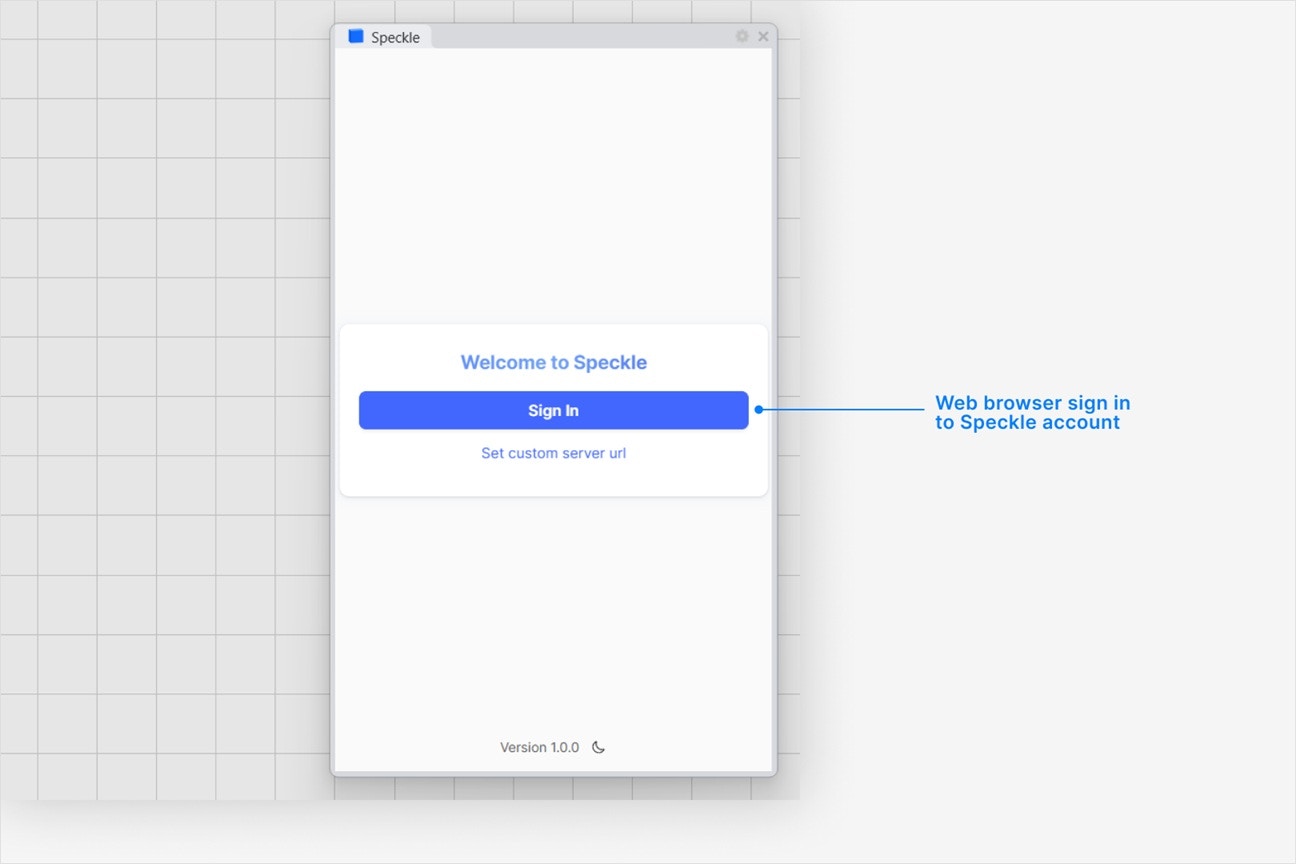
3) Select **Sign in** if you haven't linked your Speckle account.
 1. Make sure your version of {app_2} is one of the supported versions.
2. Uninstall and [reinstall your connector](/connectors/installation).
Note: Make sure you are **not** selecting **Run as administrator** when installing - this will install for the administrator user, and not your own user.
Instead, double-click the `.exe` or right-clicking and then selecting `Open` to run the installer.
Installation issues can also be caused by conflicting plugins.
If you're still experiencing problems, please report it in our [Community Forum](https://speckle.community/c/help) and include the following information:
* Your application version
* Your Speckle connector version
If your connector window is floating, **try docking it to your application** to fix blank UI
issues. For major issues, you can sometimes find a `log` file in your directory at
`AppData\Roaming\Speckle\Logs`. Please report your problem in our [Community
Forum](https://speckle.community/c/help) and include the following information: - Your application
version - Your Speckle connector version - A copy of the log
This can happen if our **desktop service** isn't running. Desktop Service is used for
authenticating new accounts. If it's not running, search for **Speckle Desktop Services** in
Windows search and run it.
All Speckle connectors are installed like any other program. You can uninstall them directly from
your system's `Applications`. For a full uninstall, you should also remove **Speckle Desktop
Services** as well as your Speckle connector.
You can always download the latest version of the connector [in the web
app](https://app.speckle.systems/connectors). If a new version of the connector is available, you
will also see a notification in your connector UI.
## Publishing a Model
1. Make sure your version of {app_2} is one of the supported versions.
2. Uninstall and [reinstall your connector](/connectors/installation).
Note: Make sure you are **not** selecting **Run as administrator** when installing - this will install for the administrator user, and not your own user.
Instead, double-click the `.exe` or right-clicking and then selecting `Open` to run the installer.
Installation issues can also be caused by conflicting plugins.
If you're still experiencing problems, please report it in our [Community Forum](https://speckle.community/c/help) and include the following information:
* Your application version
* Your Speckle connector version
If your connector window is floating, **try docking it to your application** to fix blank UI
issues. For major issues, you can sometimes find a `log` file in your directory at
`AppData\Roaming\Speckle\Logs`. Please report your problem in our [Community
Forum](https://speckle.community/c/help) and include the following information: - Your application
version - Your Speckle connector version - A copy of the log
This can happen if our **desktop service** isn't running. Desktop Service is used for
authenticating new accounts. If it's not running, search for **Speckle Desktop Services** in
Windows search and run it.
All Speckle connectors are installed like any other program. You can uninstall them directly from
your system's `Applications`. For a full uninstall, you should also remove **Speckle Desktop
Services** as well as your Speckle connector.
You can always download the latest version of the connector [in the web
app](https://app.speckle.systems/connectors). If a new version of the connector is available, you
will also see a notification in your connector UI.
## Publishing a Model
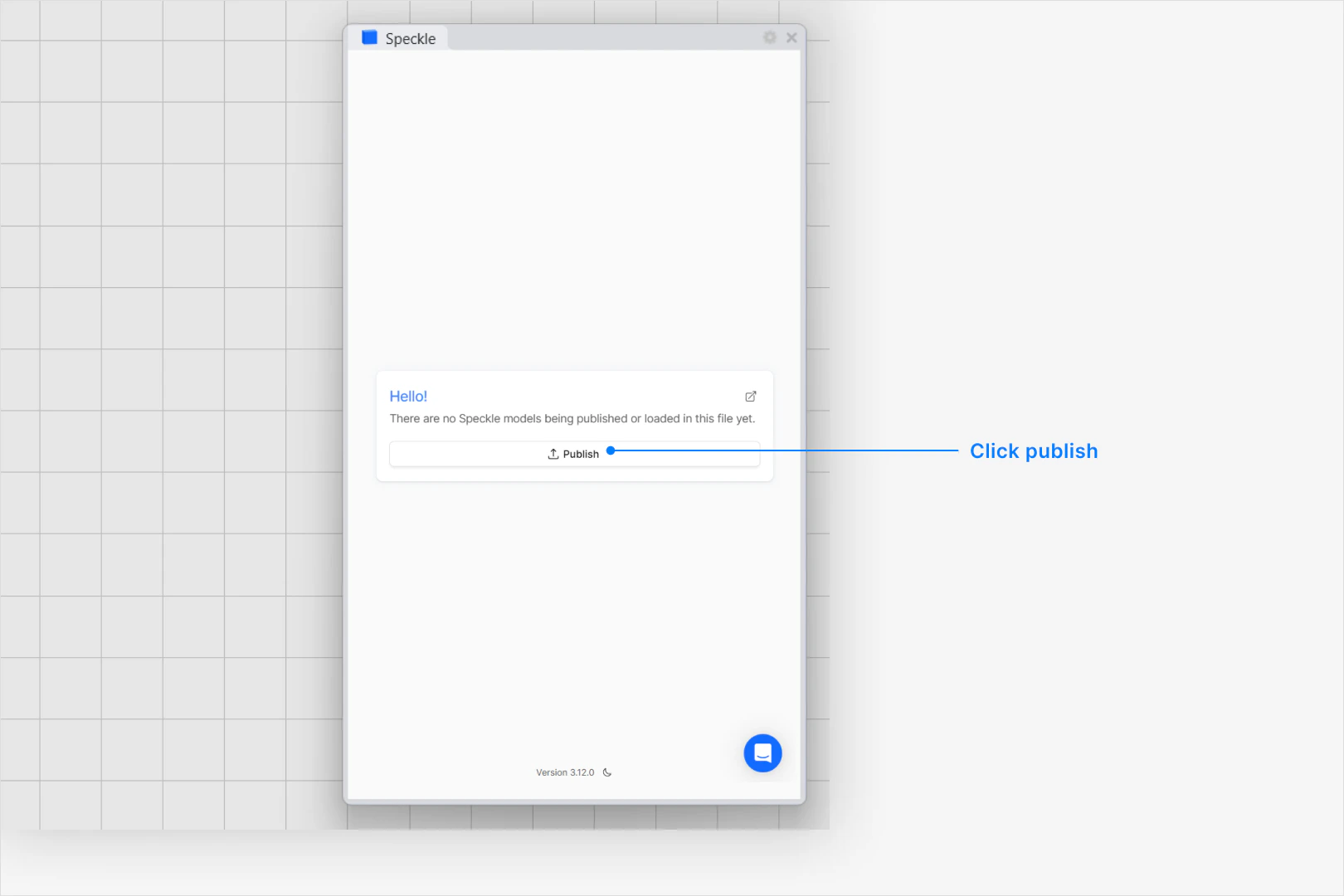 * Select an existing project - or select **New Project** to create one
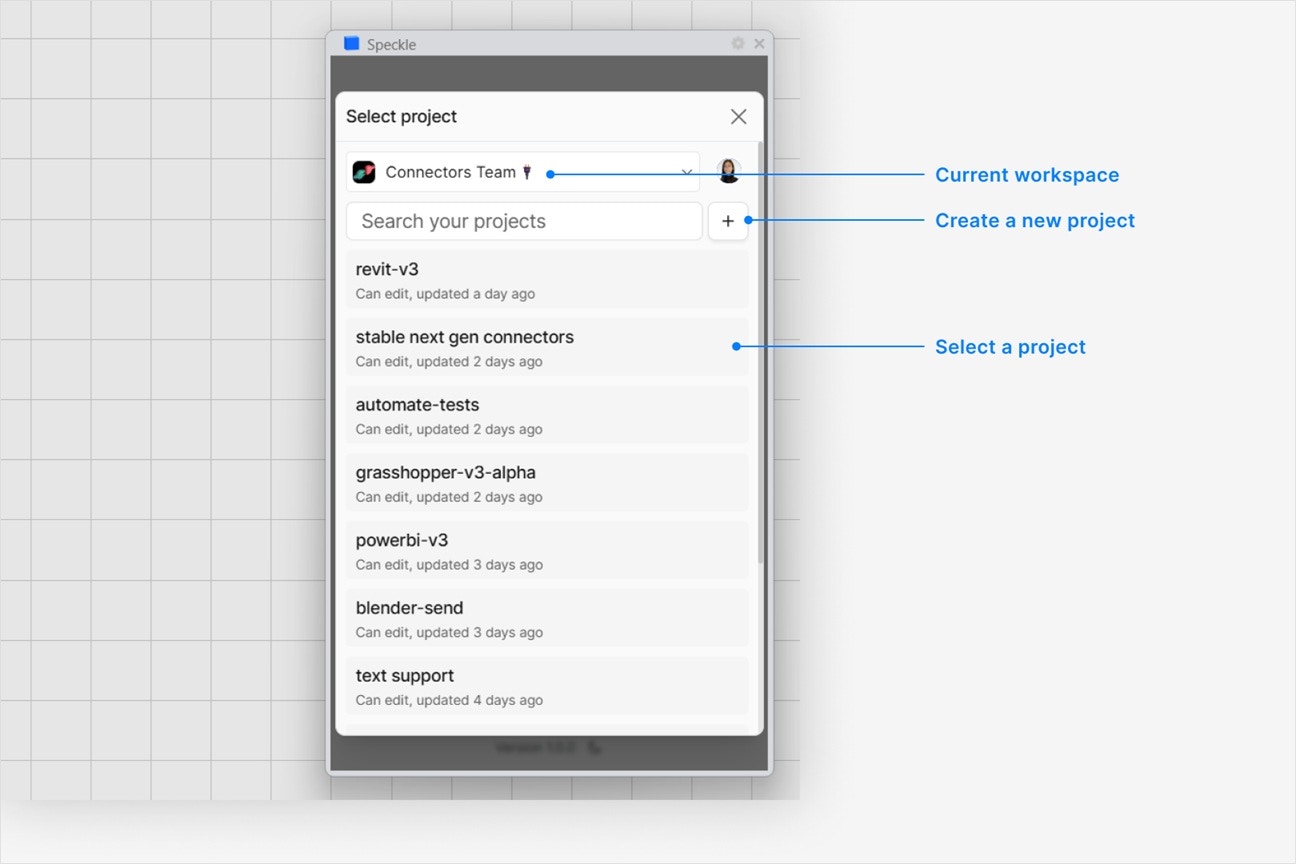 * Select an existing model - or select **New Model** to create one
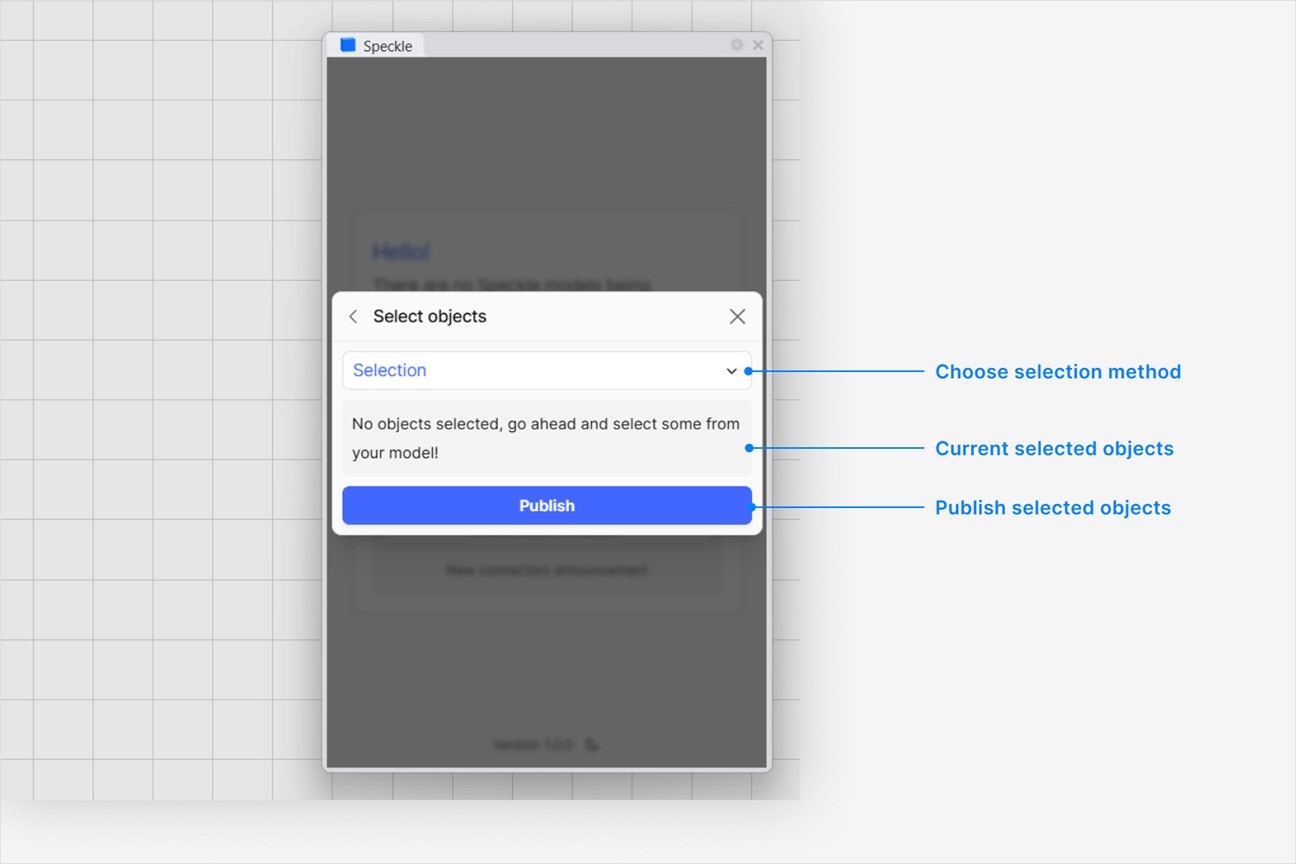
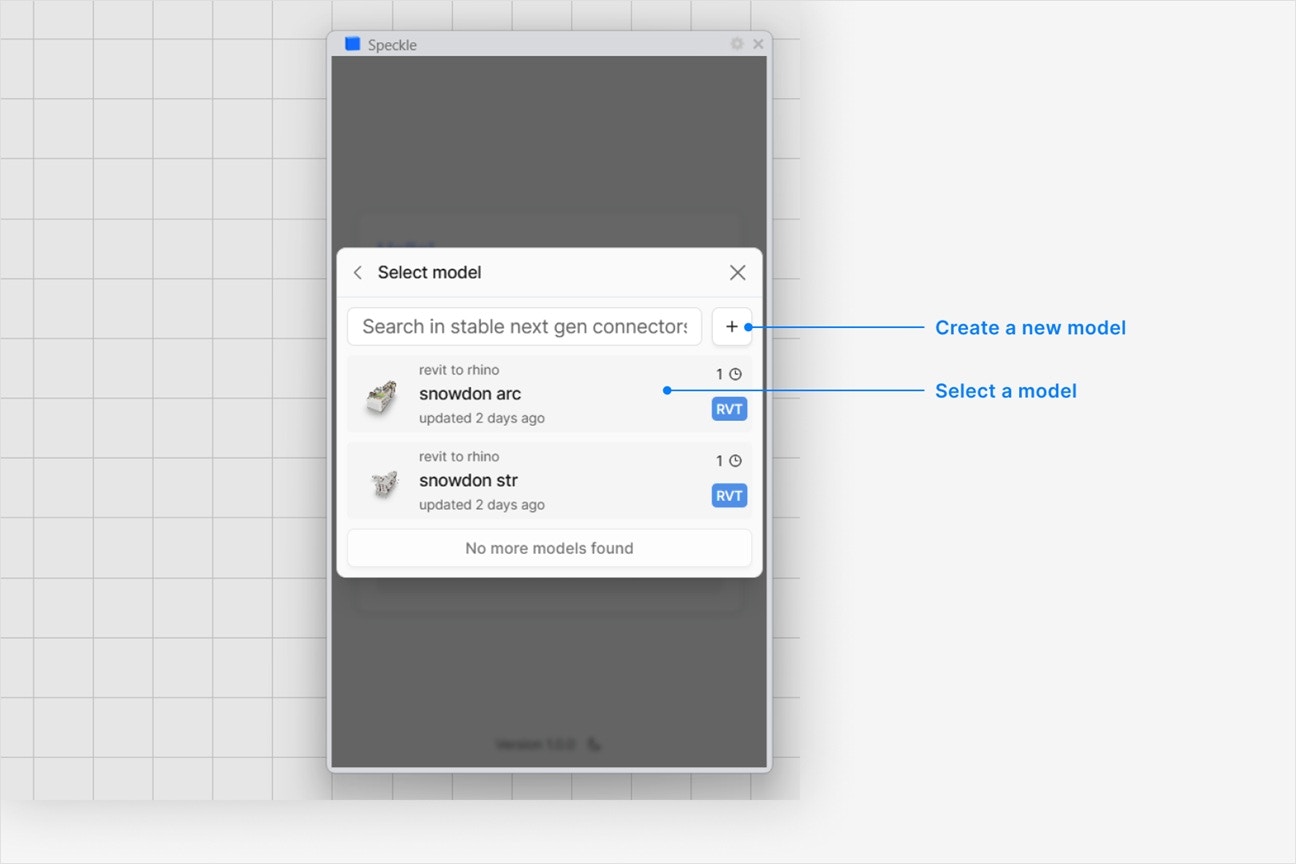 1. In your application viewport, select the elements you want to publish.
2. Select **Publish**.
1. In your application viewport, select the elements you want to publish.
2. Select **Publish**.
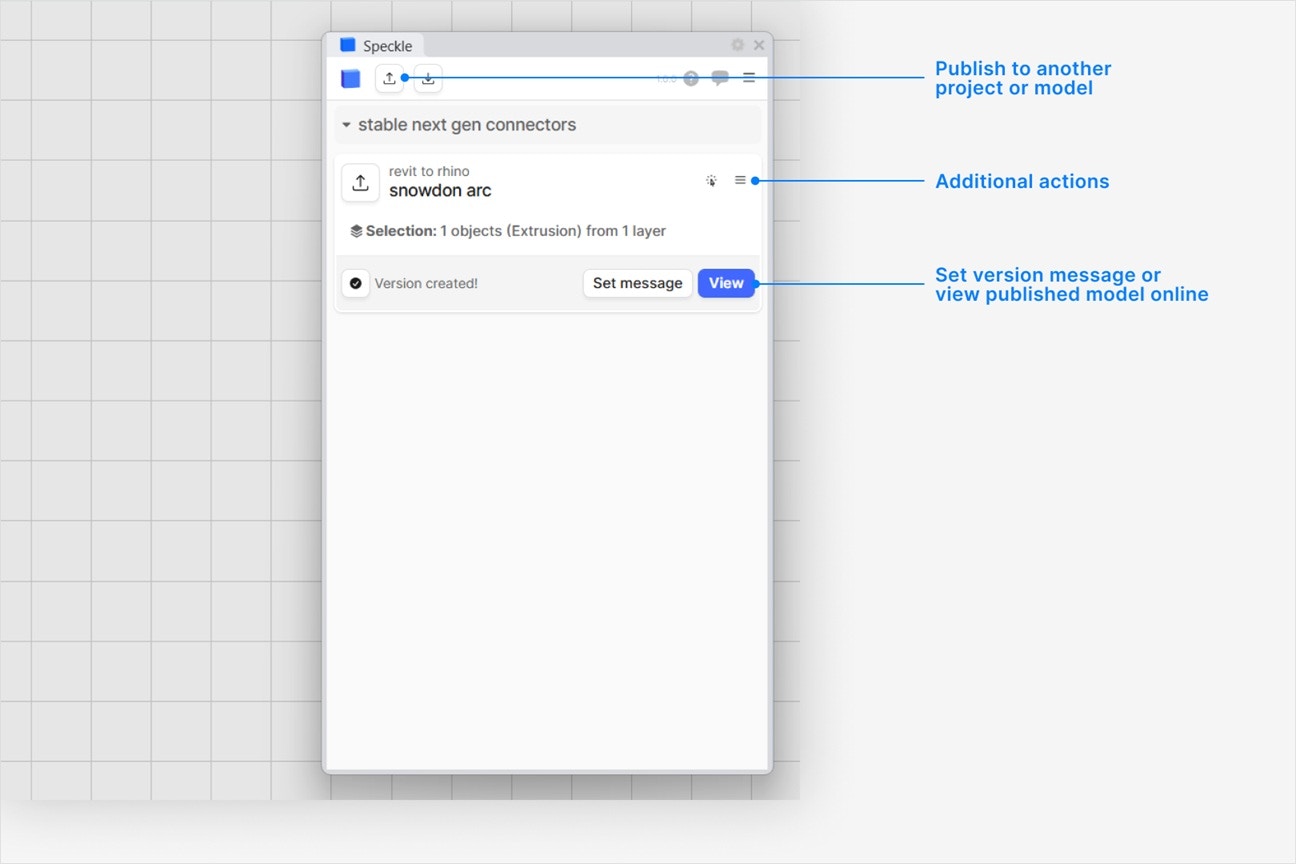 3. Your model is now published to Speckle and is available to the rest of your team.
You can publish Plant 3D objects such as:
* pipes
* inline assets, including fittings and valves
* equipment
* P\&ID objects, including assets and line segments
You can also publish supported AutoCAD drawing entities, including lines, curves, text, hatches,
solids, meshes, and blocks. Plant 3D objects without a dedicated conversion are published using
their available display geometry when possible.
Objects linked to the Plant 3D project database include their available project data, such as
tags, nominal dimensions, and other fields associated with the object. These fields are grouped
under `P&ID` in the object's properties in Speckle.
Extension dictionary and other available object properties are also included. The exact fields
depend on the object's class and the data defined in your Plant 3D project.
Plant 3D objects are published with display geometry that can be viewed in Speckle. Composite
objects are broken down into supported geometric parts while remaining a single selectable object
with their Plant 3D properties attached.
Published objects are organized by their Plant 3D drawing layers. Their original layer, color, and
material information is included when available.
The connector uses the display geometry available from Plant 3D. An object may publish without
geometry if Plant 3D cannot provide geometry that the connector can convert. Its available
properties may still be published.
New model creation defaults to your current drawing's file name. You can edit the model name
before publishing.
In the viewer, select the **View Modes** button in the side bar, and switch the view mode to
**Shaded**. If you still don't see your object colors, let us know in our [Community
Forum](https://speckle.community/c/help)
**Image texture files are not supported.** Speckle does **not** transfer bitmaps or other image maps (such as JPG or PNG files) embedded in materials from the source application.
Speckle **does** carry [PBR-style material data](/developers/sdks/python/guides/understanding-speckle-mesh#render-materials) in general—where a connector maps to it, materials can include properties such as base colour, opacity, metalness, roughness, and emissive colour. That is not the same as shipping texture images: you get numeric material parameters, not image assets used for wood grain, brick patterns, and similar in the authoring tool.
Different materials can still appear separately in the destination with distinct colours and PBR fields. What you see may look closer to a consistent shaded or PBR preview than to the full render-appearance with image maps in tools such as Revit or SketchUp. To use image textures in your target application, apply or remap them locally after you publish or load.
After you publish a Speckle model, click on the **Report** button to see any errors that may have
occurred. Click on any item in the report to highlight that item in your application. Some objects
may not be supported for publishing.
## Loading a Model
The {app_3} connector is publish-only.
If you would like to be able to load a model into {app_3}, please reach out on our Community Forum:
[https://speckle.community/c/features](https://speckle.community/c/features/7) Include the following
information: - Which application your Speckle model is published from - Why you want to load your
model into {app_3}- How frequently you would use this workflow (daily, weekly, monthly, longer).
3. Your model is now published to Speckle and is available to the rest of your team.
You can publish Plant 3D objects such as:
* pipes
* inline assets, including fittings and valves
* equipment
* P\&ID objects, including assets and line segments
You can also publish supported AutoCAD drawing entities, including lines, curves, text, hatches,
solids, meshes, and blocks. Plant 3D objects without a dedicated conversion are published using
their available display geometry when possible.
Objects linked to the Plant 3D project database include their available project data, such as
tags, nominal dimensions, and other fields associated with the object. These fields are grouped
under `P&ID` in the object's properties in Speckle.
Extension dictionary and other available object properties are also included. The exact fields
depend on the object's class and the data defined in your Plant 3D project.
Plant 3D objects are published with display geometry that can be viewed in Speckle. Composite
objects are broken down into supported geometric parts while remaining a single selectable object
with their Plant 3D properties attached.
Published objects are organized by their Plant 3D drawing layers. Their original layer, color, and
material information is included when available.
The connector uses the display geometry available from Plant 3D. An object may publish without
geometry if Plant 3D cannot provide geometry that the connector can convert. Its available
properties may still be published.
New model creation defaults to your current drawing's file name. You can edit the model name
before publishing.
In the viewer, select the **View Modes** button in the side bar, and switch the view mode to
**Shaded**. If you still don't see your object colors, let us know in our [Community
Forum](https://speckle.community/c/help)
**Image texture files are not supported.** Speckle does **not** transfer bitmaps or other image maps (such as JPG or PNG files) embedded in materials from the source application.
Speckle **does** carry [PBR-style material data](/developers/sdks/python/guides/understanding-speckle-mesh#render-materials) in general—where a connector maps to it, materials can include properties such as base colour, opacity, metalness, roughness, and emissive colour. That is not the same as shipping texture images: you get numeric material parameters, not image assets used for wood grain, brick patterns, and similar in the authoring tool.
Different materials can still appear separately in the destination with distinct colours and PBR fields. What you see may look closer to a consistent shaded or PBR preview than to the full render-appearance with image maps in tools such as Revit or SketchUp. To use image textures in your target application, apply or remap them locally after you publish or load.
After you publish a Speckle model, click on the **Report** button to see any errors that may have
occurred. Click on any item in the report to highlight that item in your application. Some objects
may not be supported for publishing.
## Loading a Model
The {app_3} connector is publish-only.
If you would like to be able to load a model into {app_3}, please reach out on our Community Forum:
[https://speckle.community/c/features](https://speckle.community/c/features/7) Include the following
information: - Which application your Speckle model is published from - Why you want to load your
model into {app_3}- How frequently you would use this workflow (daily, weekly, monthly, longer).