> ## Documentation Index
> Fetch the complete documentation index at: https://docs.speckle.systems/llms.txt
> Use this file to discover all available pages before exploring further.
# Loading blocks as families in Revit
> Load blocks and instances from Rhino, SketchUp, AutoCAD, and other applications as Revit families.
When you load a Speckle model that contains blocks or instances from another application, the Revit connector can convert
them into Revit families instead of flat direct shapes. This preserves the block structure and lets you manage instances
and materials from within Revit. The blocks in the model come from whatever application was used to publish (for example
Rhino blocks, SketchUp components, or AutoCAD blocks). See the FAQ below for which applications are supported and how
blocks get into Speckle.
## Enabling blocks to families
This feature is a load setting and is **off by default**.
To enable it:
1. In the Revit connector, open the model you want to load.
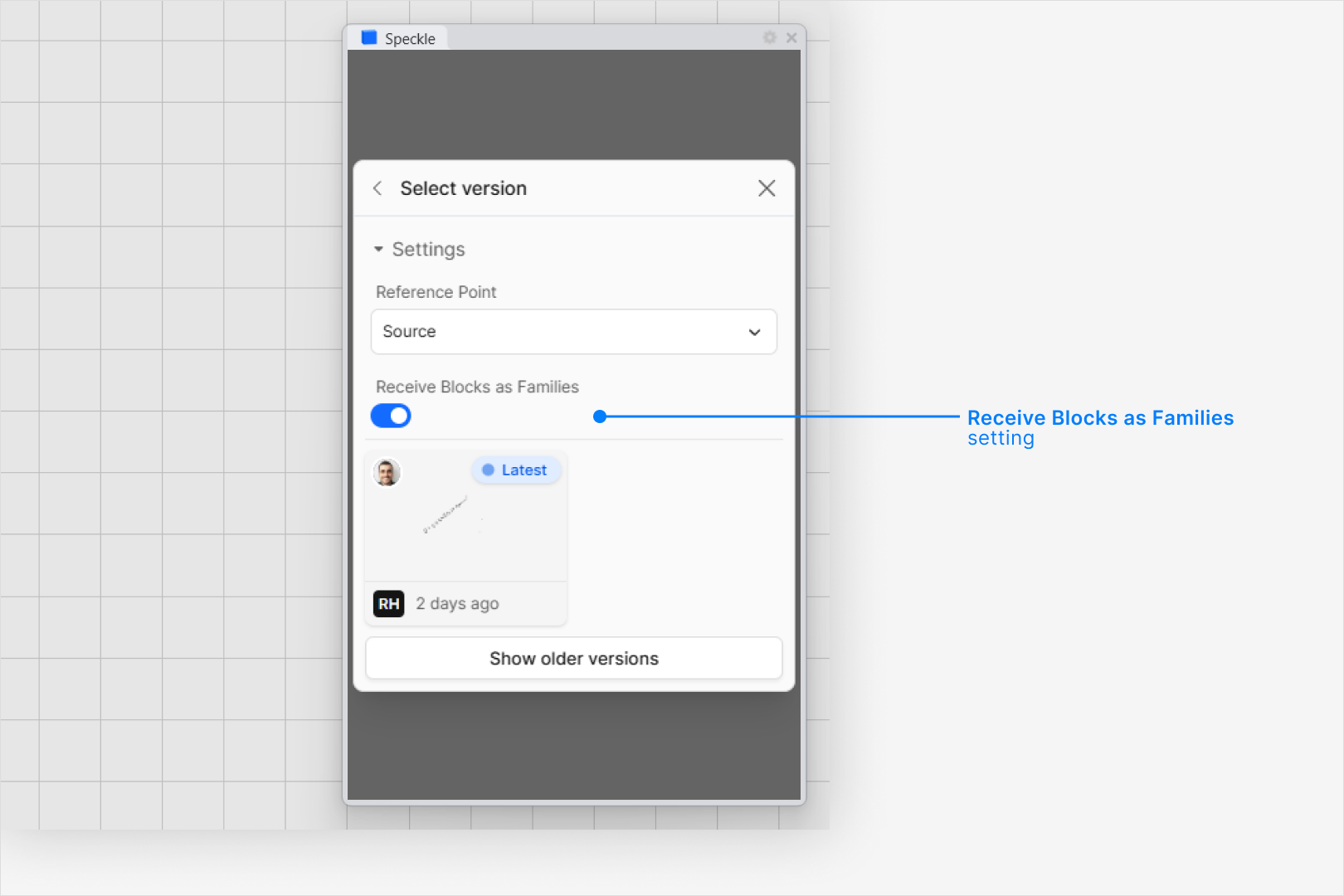
2. Expand the **Settings** section at the bottom of the load dialog.
3. Toggle **Receive Blocks as Families** on.
Expect longer load times. Revit must create and load a separate family document for each unique
block definition, which is far slower than a standard direct shape load.
 Enabling this setting only affects the current load operation. Toggle it before each load if you
want consistent results.
## How blocks are converted
Each block definition from the source model becomes a Revit family. Block instances in the scene become instances of
that family placed in your project.
### Geometry support
The following geometry types are supported. Each is converted to the most capable Revit representation available:
| Source geometry | Revit element |
| --------------- | ---------------- |
| Solids | Freeform element |
| Meshes | Freeform element |
| Surfaces | Freeform element |
| SubDs | DirectShape |
| Curves | DirectShape |
| Points | DirectShape |
If creating a freeform element fails, the connector falls back to DirectShape.
### Layers become subcategories
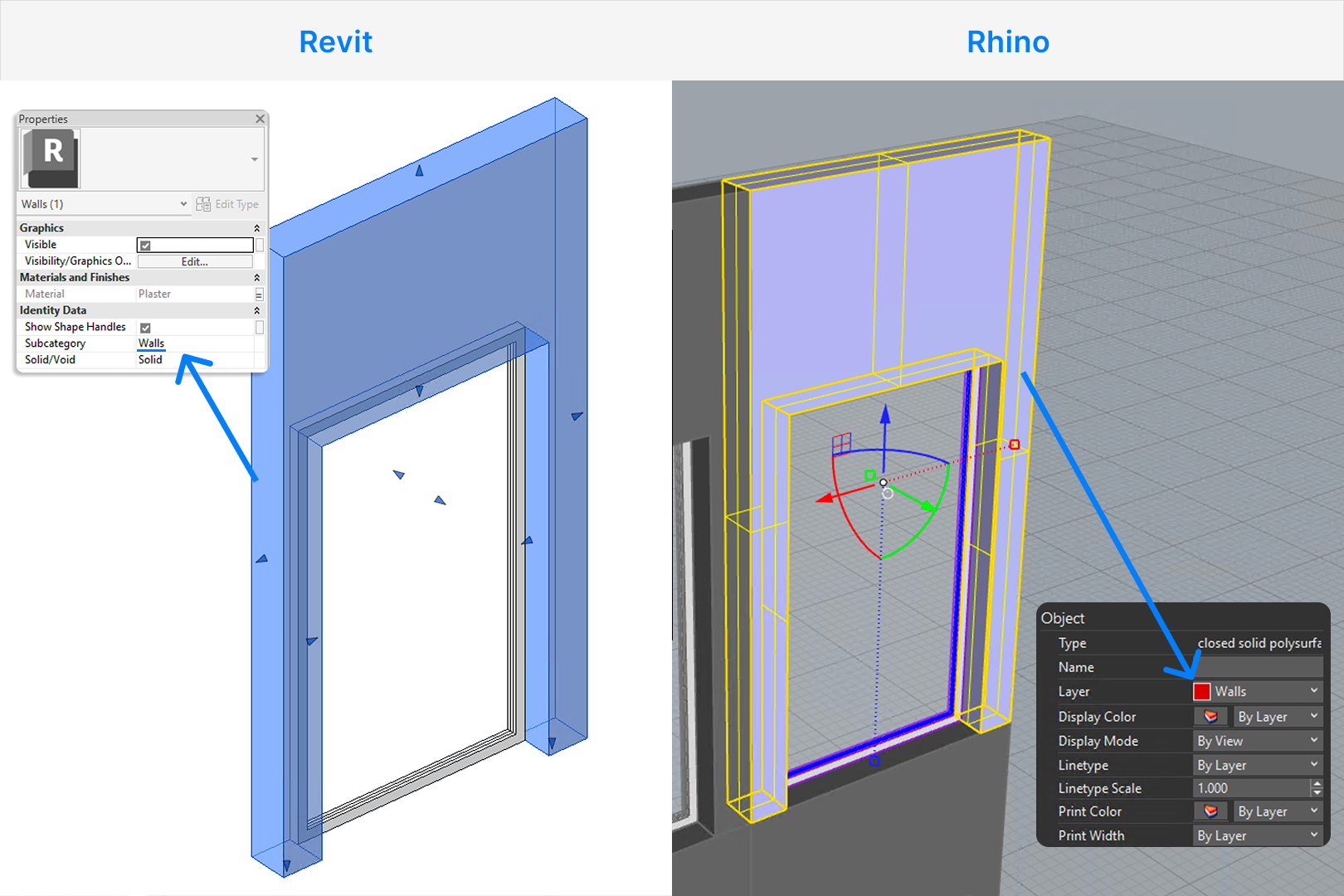
Layers assigned to geometries inside a block definition are created as subcategories within the family. This lets you
control visibility per layer from Revit's Visibility/Graphics settings.
Enabling this setting only affects the current load operation. Toggle it before each load if you
want consistent results.
## How blocks are converted
Each block definition from the source model becomes a Revit family. Block instances in the scene become instances of
that family placed in your project.
### Geometry support
The following geometry types are supported. Each is converted to the most capable Revit representation available:
| Source geometry | Revit element |
| --------------- | ---------------- |
| Solids | Freeform element |
| Meshes | Freeform element |
| Surfaces | Freeform element |
| SubDs | DirectShape |
| Curves | DirectShape |
| Points | DirectShape |
If creating a freeform element fails, the connector falls back to DirectShape.
### Layers become subcategories
Layers assigned to geometries inside a block definition are created as subcategories within the family. This lets you
control visibility per layer from Revit's Visibility/Graphics settings.
 ### Materials
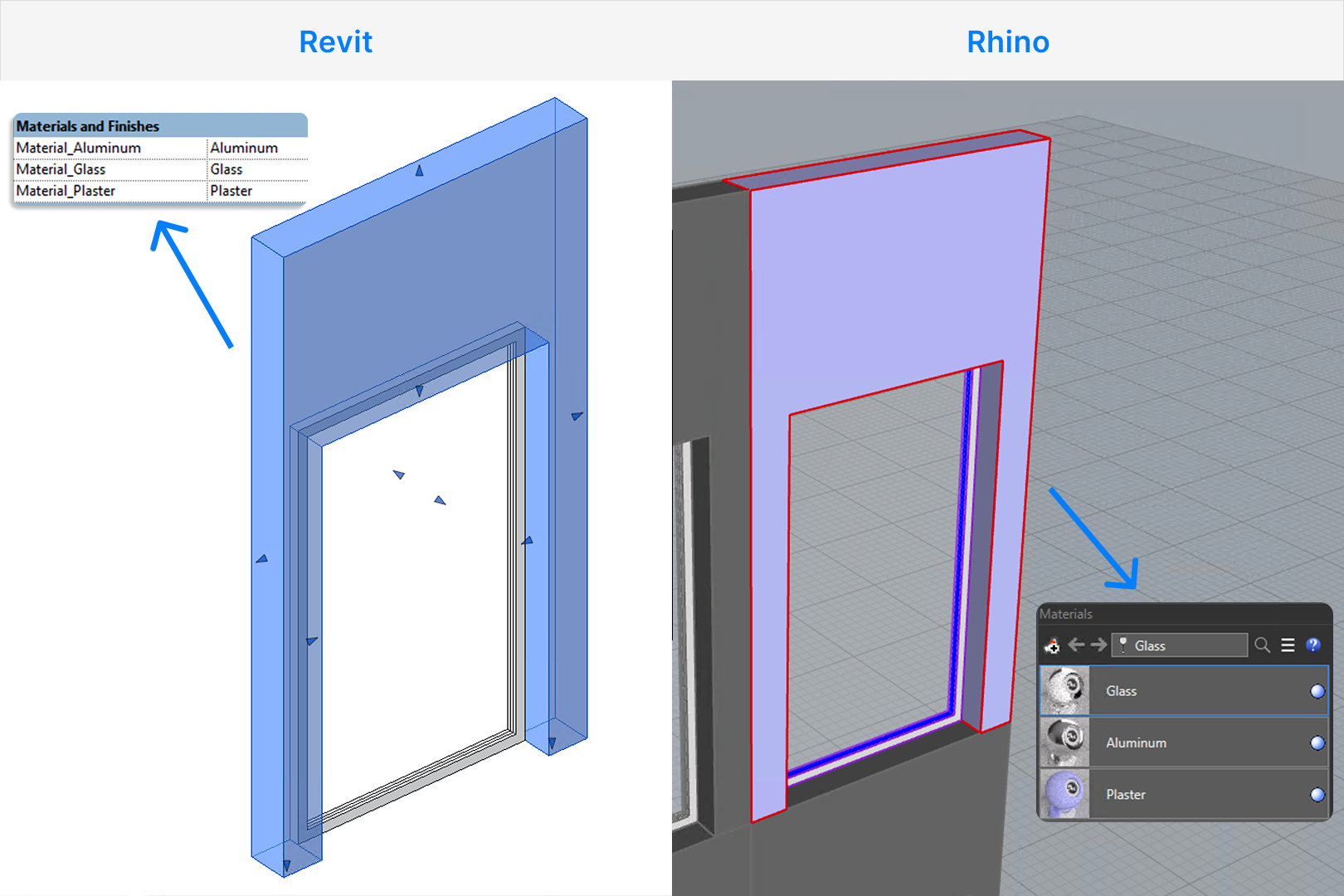
Materials from the source model are applied to the created geometry inside the family. A type parameter is also created
on the family so you can override the material directly from the project without editing the family definition.
### Materials
Materials from the source model are applied to the created geometry inside the family. A type parameter is also created
on the family so you can override the material directly from the project without editing the family definition.
 ### Nested blocks
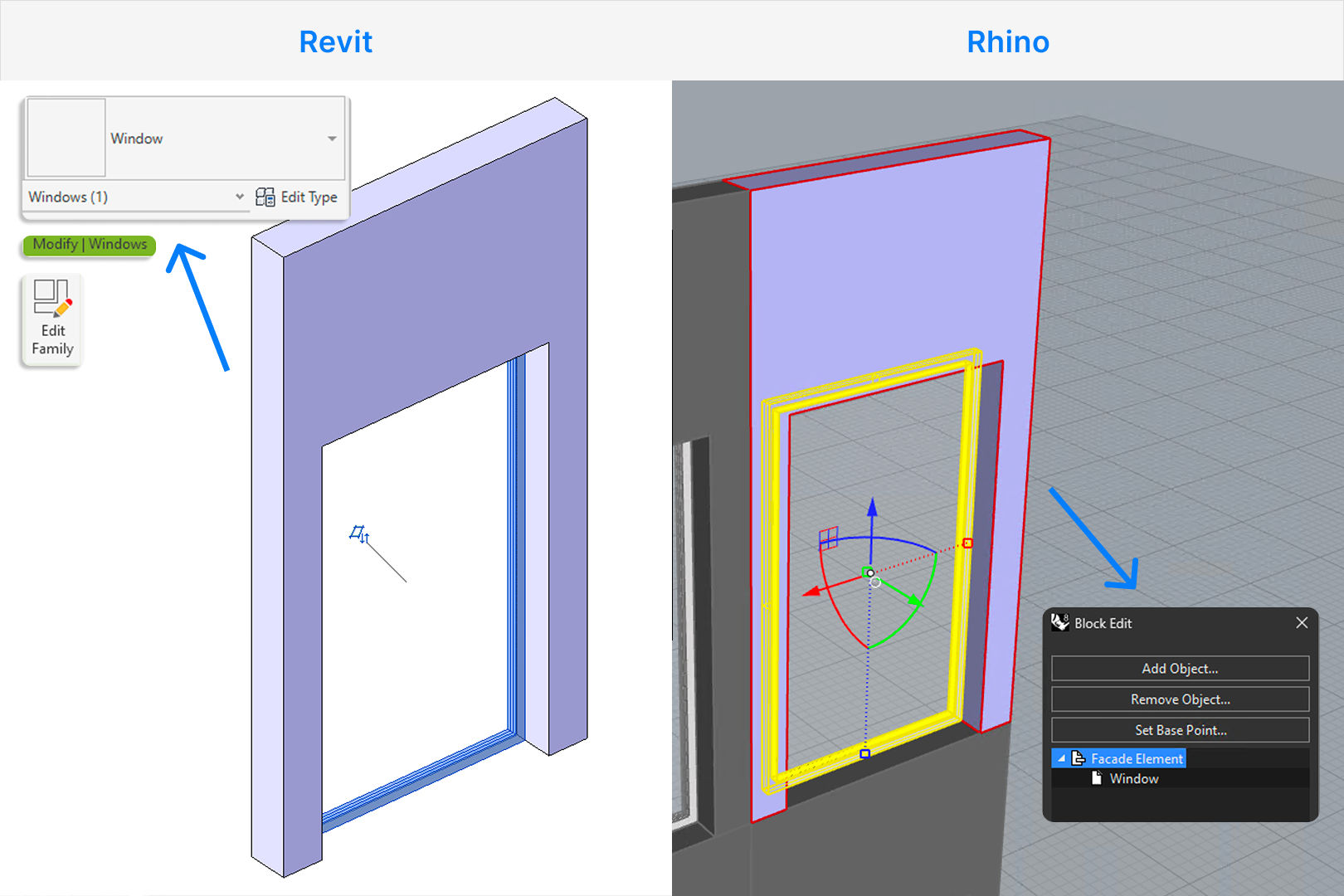
Nested blocks are supported and are converted as nested families. Each level of nesting requires Revit to create an
additional family file, which is an expensive operation.
Deeply nested block structures (common in SketchUp models) will significantly increase load time.
As a rule of thumb, avoid receiving models with more than two or three levels of nesting.
### Nested blocks
Nested blocks are supported and are converted as nested families. Each level of nesting requires Revit to create an
additional family file, which is an expensive operation.
Deeply nested block structures (common in SketchUp models) will significantly increase load time.
As a rule of thumb, avoid receiving models with more than two or three levels of nesting.
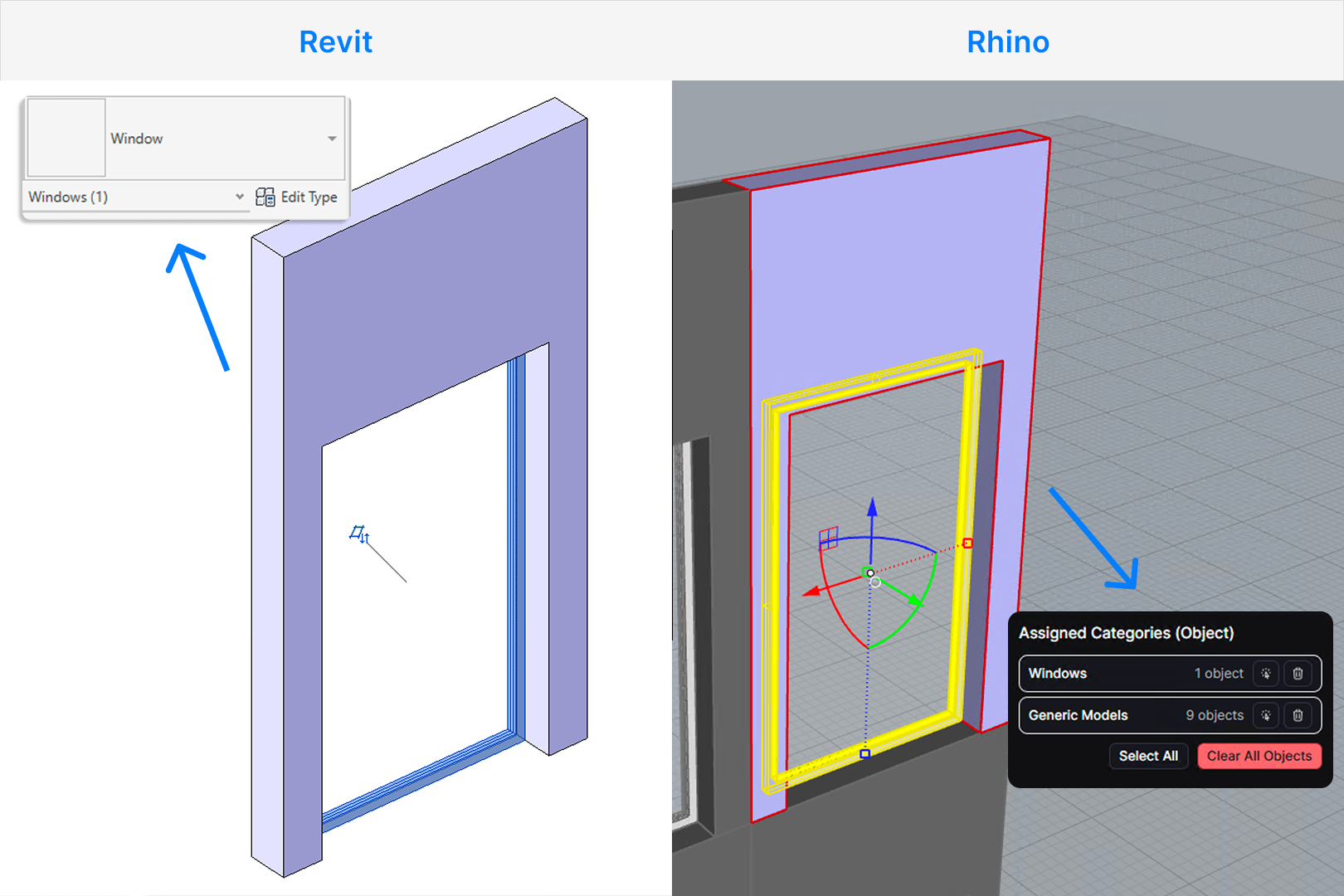
 ### Family categories
By default, all families created from blocks are assigned to the "Generic Models" category.
If you use the [Revit Categorization tool](/connectors/rhino/rhino-revit) to assign
Revit categories to your blocks, the connector will attempt to create the family
in the specified category. If the category is not supported, it will fall back to a default category.
### Family categories
By default, all families created from blocks are assigned to the "Generic Models" category.
If you use the [Revit Categorization tool](/connectors/rhino/rhino-revit) to assign
Revit categories to your blocks, the connector will attempt to create the family
in the specified category. If the category is not supported, it will fall back to a default category.
 ## FAQ
Any application whose Speckle connector sends block or instance structure will work. That includes
Rhino (blocks), SketchUp (components and groups), and AutoCAD (blocks). If you publish from one of
these and your model contains block definitions with instances, the Revit connector can receive
them as families. Other connectors that support blocks in the future will work the same way.
Blocks come from the application you use to publish. Create blocks (or components, or groups,
depending on the app) in that application, then publish the model to Speckle. Speckle stores each
block definition once and each placement as an instance. When you load in Revit with **Receive
Blocks as Families** on, those definitions become Revit families and the instances become family
instances in the project.
Yes. Nested blocks are converted as nested families, preserving the original hierarchy. However,
each nesting level adds to load time because Revit must create a separate family for each unique
block definition. Deeply nested models (such as those from SketchUp) can be slow to process.
Revit's geometry engine only supports transformations that preserve angles —
specifically, uniform scale, rotation, and reflection. Non-uniform scaling
(where X, Y, and Z scale independently) and shearing (skewing) are not supported
by the Revit API at the family instance level.
When a block instance in your source model has been non-uniformly scaled or
skewed, Speckle will place the family at the correct position and rotation,
but the scaling or skew cannot be applied. The family will appear at its original undeformed proportions.
To work around this, bake or explode the affected instances in the source
application before publishing to Speckle, so the geometry is already deformed and no longer relies on a transform.
## FAQ
Any application whose Speckle connector sends block or instance structure will work. That includes
Rhino (blocks), SketchUp (components and groups), and AutoCAD (blocks). If you publish from one of
these and your model contains block definitions with instances, the Revit connector can receive
them as families. Other connectors that support blocks in the future will work the same way.
Blocks come from the application you use to publish. Create blocks (or components, or groups,
depending on the app) in that application, then publish the model to Speckle. Speckle stores each
block definition once and each placement as an instance. When you load in Revit with **Receive
Blocks as Families** on, those definitions become Revit families and the instances become family
instances in the project.
Yes. Nested blocks are converted as nested families, preserving the original hierarchy. However,
each nesting level adds to load time because Revit must create a separate family for each unique
block definition. Deeply nested models (such as those from SketchUp) can be slow to process.
Revit's geometry engine only supports transformations that preserve angles —
specifically, uniform scale, rotation, and reflection. Non-uniform scaling
(where X, Y, and Z scale independently) and shearing (skewing) are not supported
by the Revit API at the family instance level.
When a block instance in your source model has been non-uniformly scaled or
skewed, Speckle will place the family at the correct position and rotation,
but the scaling or skew cannot be applied. The family will appear at its original undeformed proportions.
To work around this, bake or explode the affected instances in the source
application before publishing to Speckle, so the geometry is already deformed and no longer relies on a transform.